![worth logo Dark.png 16-31-37-785 1.png]](https://support.worthscore.com/hs-fs/hubfs/worth%20logo%20Dark.png%2016-31-37-785%201.png?height=40&name=worth%20logo%20Dark.png%2016-31-37-785%201.png)
Introduction The Case Activity section provides a complete audit trail of actions that occur throughout the lifecycle of a case. This includes system-generated events, user comments, document uploads, status changes, assignment updates, and other actions performed within the platform. When reviewing a case with a large volume of activity, the Filter functionality allows you to quickly locate the information that matters most without manually searching through the full activity log.
Accessing Case Activity Filters
- Navigate to the desired case.
- In the Overview tab, scroll to the Case Activity section.
- Select Filters.
This will open the Filter Options panel.
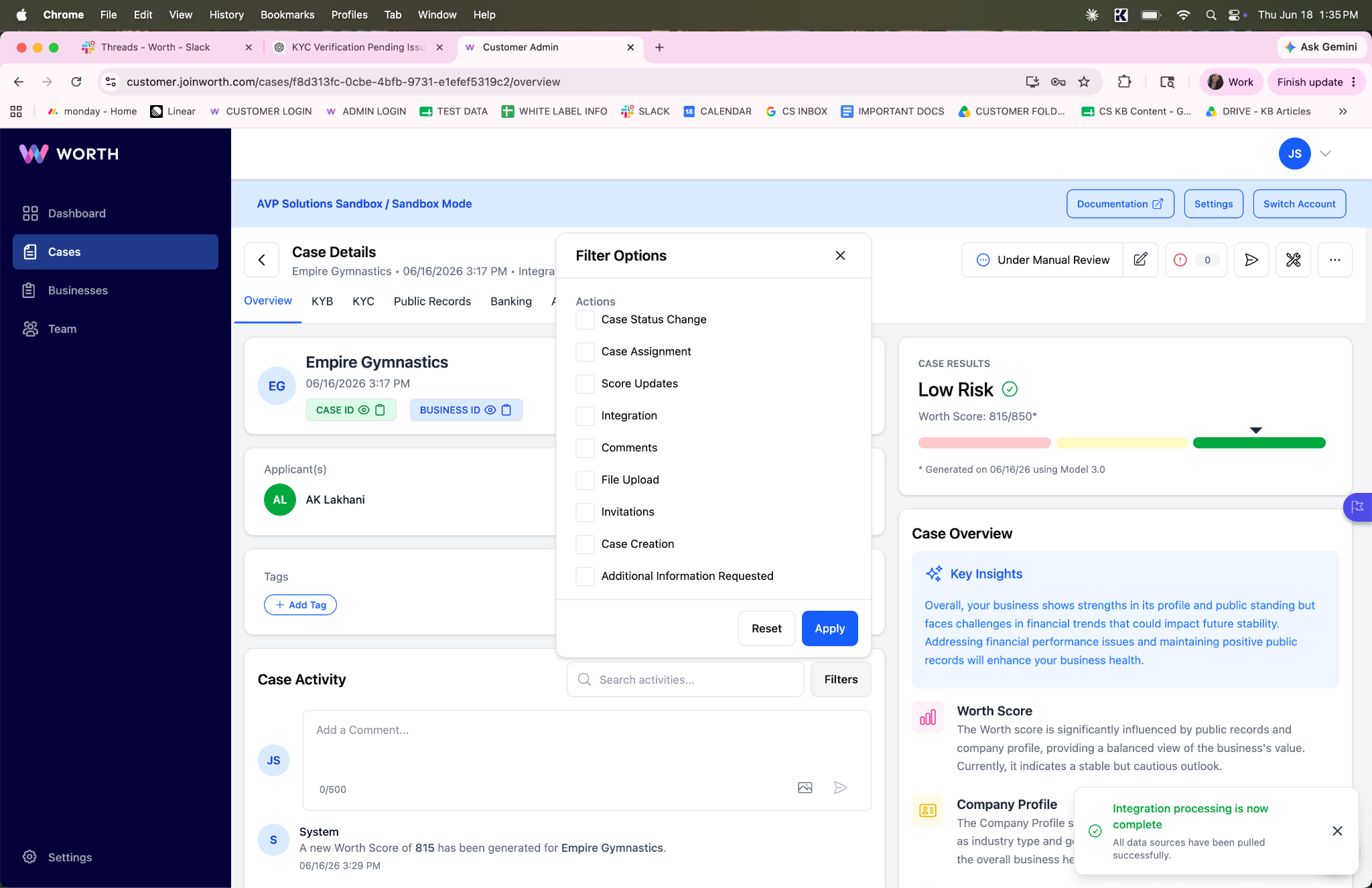
The Filter Options panel allows you to narrow activity results by specific event type.
Note: The Filter Options panel lists 33 individual event type filters. For simplicity, the filters below are grouped into related categories. When using the panel, you'll select the individual event types that belong to each category.
Common Filter Types:
- Comments
Displays comments added by users with permissions to comment on a case. Use this filter when reviewing conversations, notes, or collaboration activity without seeing system-generated events. - Case Status Change
Displays updates related to case status transitions, such as Under Manual Review, Approved, Onboarding, and Auto Rejected - Case Assignment
Displays events related to case assignment, reassignment, and unassignment. Useful when tracking ownership changes throughout the review process. - Score Updates
Displays Worth Score generation and score-related updates. - Integration Events
Displays activities generated by integrations and data processing, including integration processing completed, data source updates, and automated enrichment events. - File and Document Activity
Displays events such as file uploads, applicant document uploads, e-signed documents, and identity document downloads. - Invitation Activity
Displays invitation-related events sent to applicants or other participants. - Application Edits
Displays changes made to application data, including field updates, new field entries, and application modifications. - Additional Information Requests
Displays events related to requesting or updating additional information from applicants. - Tags and Custom Fields
Displays activities involving tag creation, tag assignment or removal, custom field creation, and custom field updates.
Common Filter Use Cases - To review user comments only: Select the Comments filter to remove system-generated events and display only user-entered notes and discussions.
- To investigate document activity: Under File and Document Activity, select the File Upload, Applicant Document Upload, and Applicant E-signed Document event type filters for a focused view of document-related activity.
- To audit case ownership: Under Case Assignment, select the Case Assignment, Case Reassignment, and Case Unassignment event type filters to track ownership changes throughout the review process.
Filtering by Date Range
In addition to filtering by event type, results can be narrowed to a specific date range.
This is particularly helpful when investigating activity that occurred during a specific onboarding, underwriting, or review period.
- Open Filters.
- Scroll to the Date Range section.
- Select the desired start and end dates.
- Click Apply.
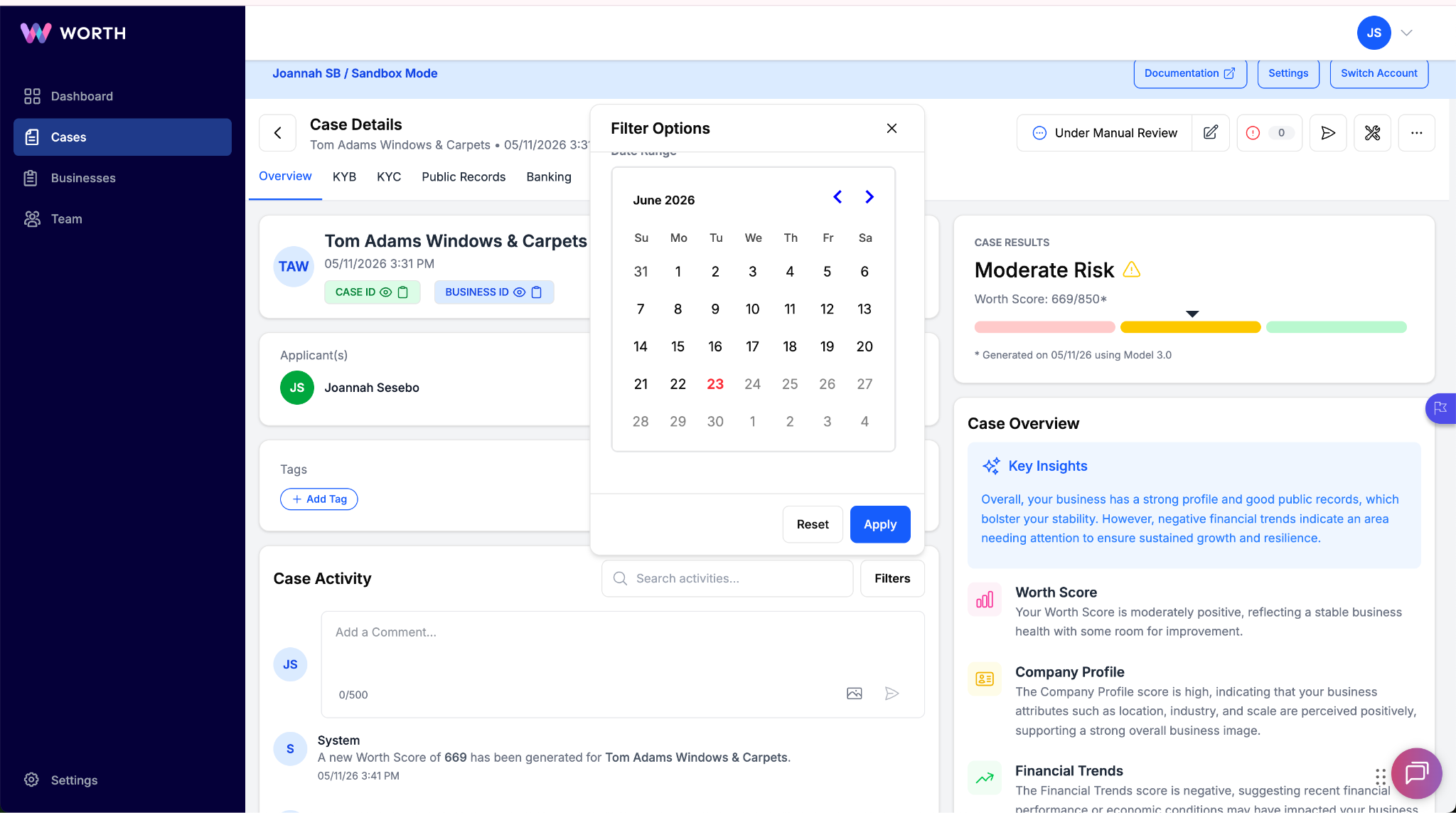
Use the Date Range filter to narrow activity results to a specific period.
Tip: Combine Date Range and Event Type filters for the most targeted results. Select Reset to clear all applied filters and return to the full activity history
Frequently Asked Questions
- What types of events appear in Case Activity without filters applied?
- Without filters, the activity feed includes all recorded events, including automated system actions such as score generation and integration processing, as well as user-driven actions such as comments, document uploads, and status changes.
- Can I apply more than one filter at a time?
- Multiple event type filters can be selected simultaneously. The results will include any activity that matches at least one of the selected filters.
- How do I clear filters and return to the full activity view?
- Select Reset within the Filter Options panel to remove all applied filters and restore the complete activity history.
- Is Case Activity available for all cases?
- Case Activity is available within any case record. The volume and types of events displayed will vary depending on the actions taken throughout that case's review lifecycle.
- Why don't I see any results after applying a filter?
- If no activity matches the selected filter criteria or date range, the activity feed may appear empty. Try expanding the date range or selecting Reset to clear all filters. This can help determine whether activity exists outside the selected criteria.
- Can I export filtered Case Activity results?
- No. Filtered Case Activity is available for on-screen viewing only and cannot currently be exported.
- Does Case Activity depend on my user permissions?
- Yes. The activity and actions you can view may vary based on your assigned role and permissions within the platform.
- Do my filters stay applied if I leave the case and come back?
- No. Filters are reset when you leave the case or refresh the page. You'll need to reapply them when you return..