![worth logo Dark.png 16-31-37-785 1.png]](https://support.worthscore.com/hs-fs/hubfs/worth%20logo%20Dark.png%2016-31-37-785%201.png?height=40&name=worth%20logo%20Dark.png%2016-31-37-785%201.png)
Introduction
When onboarding multi-location opportunities, much of the applicant information is often the same across locations. To streamline this process, the platform allows clients to complete the application for the first location, clone the business or case, and then make only the necessary updates for each additional location.
This article walks through the steps for cloning a business in the platform.
- Start by navigating to the Cases tab and selecting the case to be cloned
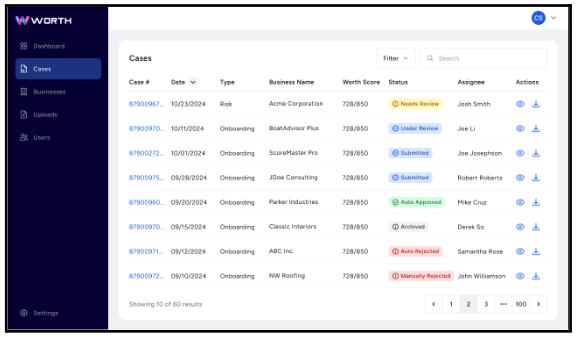
- Open the case and click the ellipsis in the top-right corner.
- From the dropdown menu, select Clone Case to New Business.

- A modal appears allowing review and updates to key details prior to cloning. These fields include the Legal Business Name, DBA, TIN, and Location Address.
- By default, all options are selected and the fields are pre-populated with information from the original case.
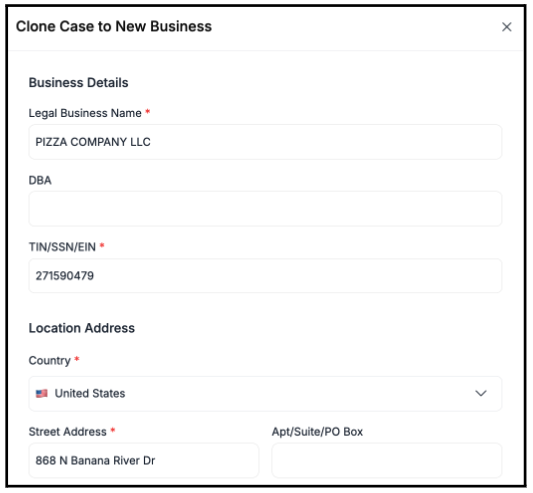
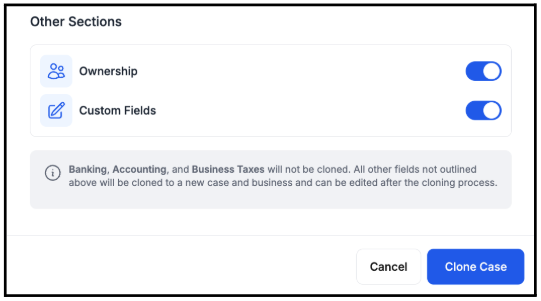
- Scroll down to the Other Sections area of the modal to determine whether Ownership and Custom Fields should be carried over. These sections can be toggled on or off as needed.
- ∗ If a soft credit pull was completed on the original case, the Ownership toggle MUST be turned OFF before cloning the case. Leaving this enabled will result in a duplicate credit pull.∗
-
Once the case is cloned, the platform automatically redirects to the newly created case.
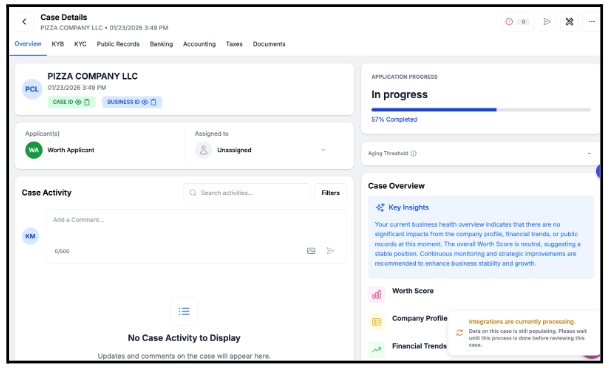
- The cloned case is added to a new business record of the same name and appears in the Related Businesses section of the original business or case.
- If the TINs are identical, the relationship is reflected in both records.