![worth logo Dark.png 16-31-37-785 1.png]](https://support.worthscore.com/hs-fs/hubfs/worth%20logo%20Dark.png%2016-31-37-785%201.png?height=40&name=worth%20logo%20Dark.png%2016-31-37-785%201.png)
Introduction
When completing or reviewing an application, the pre-filled MCC or NAICS code may not accurately reflect the business. These codes can be updated either while actively filling out the application or after the application has been submitted.
This article outlines the steps for editing MCC and NAICS codes within a case.
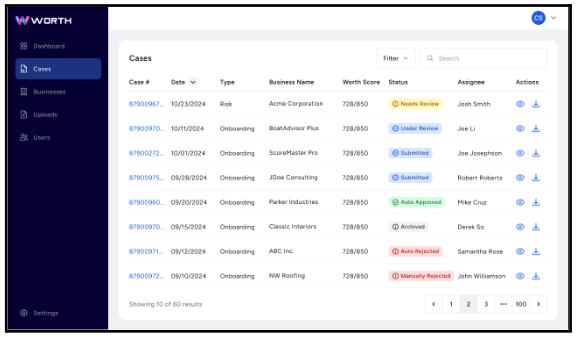
- Navigate to the Cases tab.
- Select the Case # that requires updates.
-
Open the case and select the Edit Application button (wrench icon) located in the top-right corner.
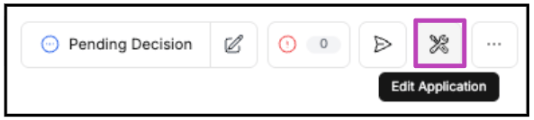
- A new browser tab titled Applicant App opens, allowing edits to various sections of the application.
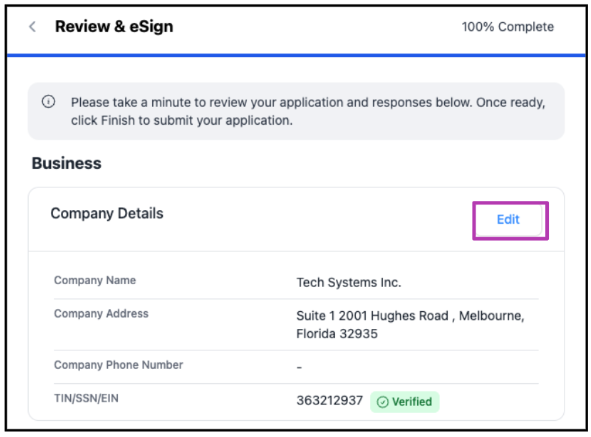
- On the Review & eSign page, locate the Business section and select Edit within the Company Details section.
-
On the Company page, select the textbox for either the NAICS Code or MCC Code and enter the appropriate code. After entering the updated code, select Next to continue.
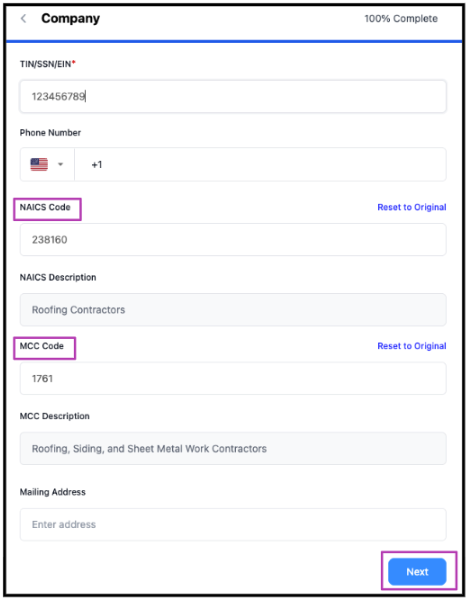
- This returns to the Review & eSign screen.
- Scroll to the bottom of the page and select Update Application to save the changes.
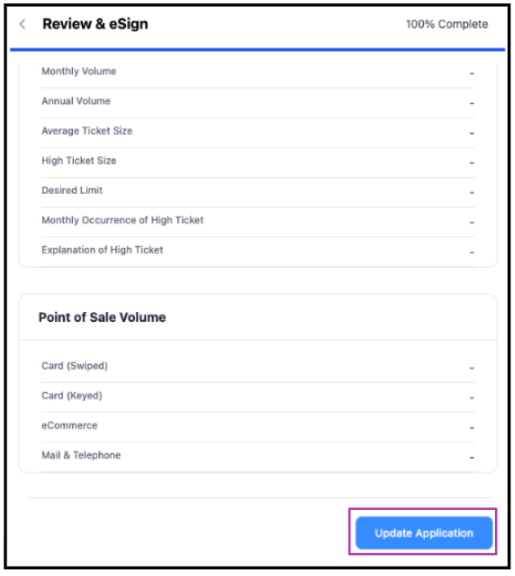
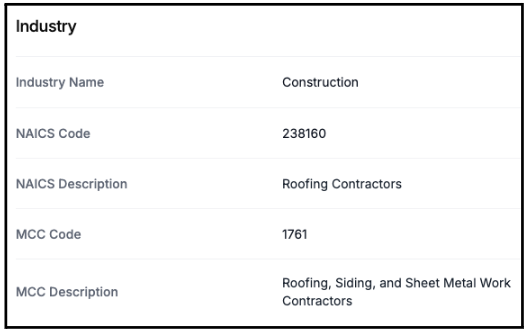
- Once updated, the revised code(s) can be viewed within the case.
- From the case screen, navigate to the KYB tab, select the Background sub-tab, and scroll to the Industry section to confirm the changes.