![worth logo Dark.png 16-31-37-785 1.png]](https://support.worthscore.com/hs-fs/hubfs/worth%20logo%20Dark.png%2016-31-37-785%201.png?height=40&name=worth%20logo%20Dark.png%2016-31-37-785%201.png)
Introduction
The Users page simplifies team management by centralizing access provisioning, role assignments, and permission controls in a single view.
- From the top-left navigation menu, select the “Users” tab.
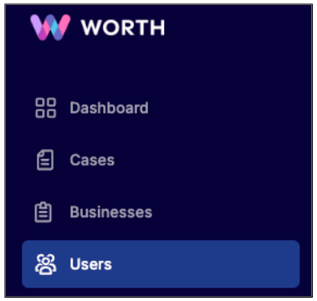
- On the Users page, team members are listed with the following attributes:

- User ID – A unique identifier automatically assigned to each user within the Worth platform.
- User Name – The full name (first and last) associated with the user account.
- Email ID – The email address linked to the user account.
- Role – Displays the user’s assigned role (e.g., CRO or Risk Analyst). See role descriptions at the end of this document.
- Status – Shows whether the user is currently marked as Active or Inactive in the system.
- Action – Includes a View Details button to display information such as User ID, Full Name, Email Address, and Phone Number, along with options to edit or deactivate the account.
Roles Descriptions:
- Risk Analyst Role & Responsibilities
-
- Risk Analysts are responsible for evaluating cases and making informed risk decisions. They can:
- View detailed business information for risk assessment
- Review applications flagged for manual review
- Request additional information from applicants as needed
- Manually approve or reject cases based on their evaluation
- Risk Analysts are responsible for evaluating cases and making informed risk decisions. They can:
- CRO (Chief Risk Officer) Role & Capabilities
-
- The CRO role includes full Risk Analyst permissions, plus the ability to:
- Manage user accounts (create, update, deactivate, or resend invites)
- Access the CRO Dashboard, featuring:
- Pipeline
- Team Performance
- Risk Analysis
- Use Case Management and Case Queue tools
- View detailed business information
- Manage Webhook permissions (read, write, create)
- Access reports including Total Cases Processed, Case IDs, Application Info, Business Names, and Underwriting Decisions
For information on adding a new user, refer to the How to Set Up a New User Account article. - The CRO role includes full Risk Analyst permissions, plus the ability to: